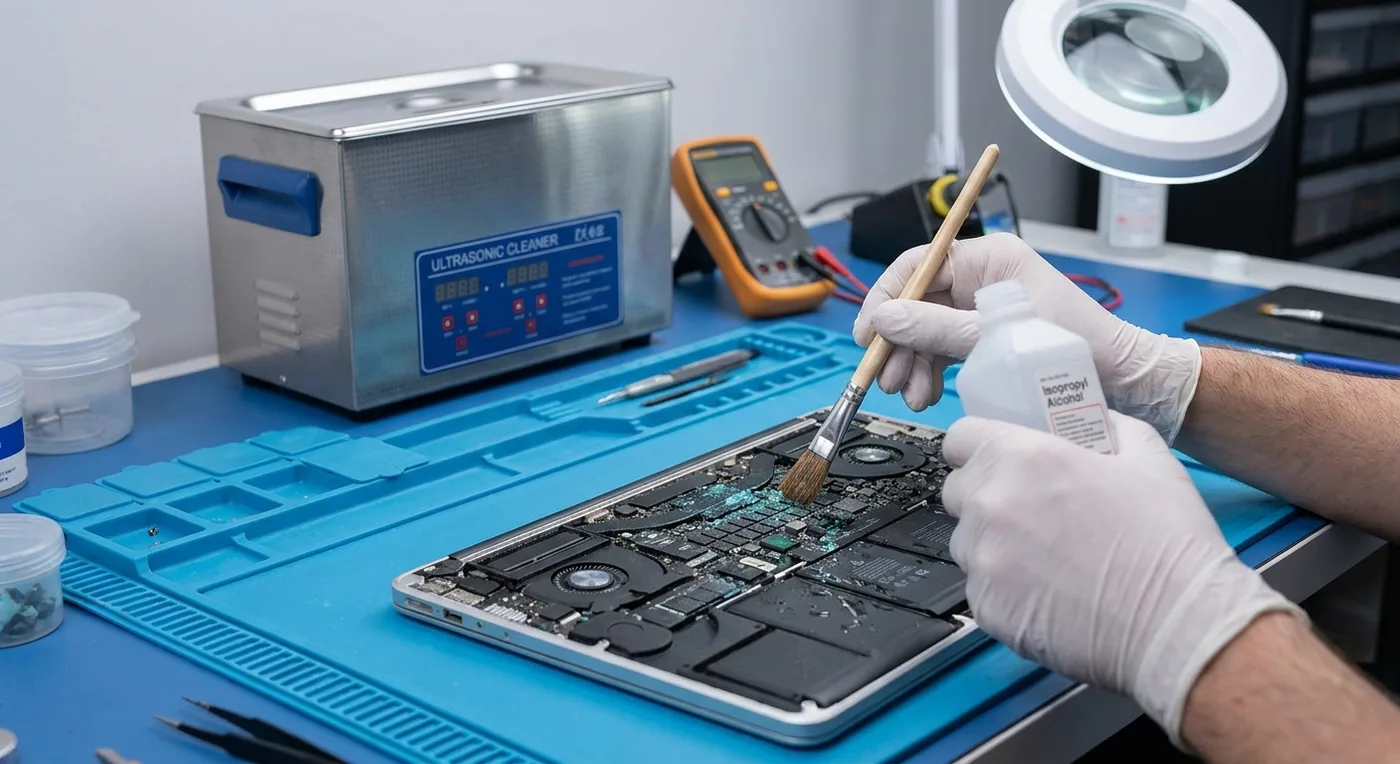
Navigating the Tech Jungle: Your Friendly Guide to Digital Troubleshooting

Navigating the Tech Jungle: Your Friendly Guide to Digital Troubleshooting
In today’s hyper-connected world, technology is both a lifeline and a labyrinth. Whether you’re trying to fix a frozen laptop, recover lost files, or troubleshoot a misbehaving app, digital troubleshooting can feel like wandering through a dense jungle without a map. The good news? You don’t need to be a tech genius to solve most common issues. With a systematic approach and a few reliable tools, you can tackle problems like a pro. This guide is your friendly companion through the tech jungle, offering practical advice to help you navigate digital hiccups with confidence.
Understanding the Basics of Digital Troubleshooting
Before diving into solutions, it’s essential to grasp the fundamentals of troubleshooting. At its core, digital troubleshooting is about identifying the root cause of a problem and applying targeted fixes. Start by asking yourself a few key questions:
- What changed recently? New software, updates, or hardware installations often introduce issues.
- Is the problem consistent or intermittent? Intermittent problems can be trickier to diagnose but may point to overheating, loose connections, or software glitches.
- Are there any error messages? Messages like “Error 404” or “Device not recognized” provide valuable clues about what’s wrong.
By breaking down problems into smaller, manageable parts, you’ll avoid feeling overwhelmed and increase your chances of success.
The Power of the Restart
It might sound cliché, but restarting your device is the first and often most effective troubleshooting step. Many issues stem from temporary glitches in memory or background processes, which a simple reboot can clear. If a restart doesn’t work, try powering off the device completely for a minute before turning it back on. This “hard reset” can resolve more stubborn problems by fully clearing the system’s state.
Tackling Common Software Issues
Software problems are among the most frequent headaches for users. From crashes to slow performance, here’s how to address them:
1. Slow Performance
If your device feels sluggish, start by checking for resource-heavy applications. On Windows, open the Task Manager (Ctrl + Shift + Esc) to see which programs are consuming the most CPU or memory. On macOS, use Activity Monitor. Close unnecessary apps and disable startup programs that launch automatically. Additionally, ensure your operating system and software are up to date—updates often include performance improvements and bug fixes.
For persistent slowdowns, consider:
- Running a malware scan: Viruses or spyware can drastically reduce performance.
- Freeing up disk space: A nearly full hard drive can slow down your system. Delete temporary files, empty the recycle bin, and uninstall unused programs.
- Upgrading hardware: If your device is several years old, adding more RAM or switching to a solid-state drive (SSD) can make a world of difference.
2. Software Crashes and Freezes
When an app or your entire system freezes or crashes, the first step is to identify whether the issue is isolated to one application or system-wide. If it’s a single app:
- Check for updates: Developers frequently release patches to fix bugs.
- Reinstall the software: Corrupted files may be causing the crash. Uninstall the app and download a fresh copy from the official source.
- Run in compatibility mode: Older software may not work well with newer operating systems. Right-click the app’s shortcut, select “Properties,” and choose an older Windows version.
For system-wide crashes, try booting your device in Safe Mode (Windows) or Safe Boot (macOS). This loads only essential services, helping you determine if a third-party app is the culprit. If the issue disappears in Safe Mode, the problem likely lies with a recently installed program.
Hardware Problems: When the Machine Isn’t Playing Nice
Hardware issues can be more intimidating, but many common problems have simple fixes. Here’s how to diagnose and resolve them:
1. Peripheral Devices Not Recognized
If your computer isn’t detecting a mouse, keyboard, printer, or other peripheral, start with the basics:
- Check the connection: Ensure cables are securely plugged in or that wireless devices are charged and within range.
- Try a different port or cable: Faulty ports or damaged cables are often the culprit.
- Update drivers: Visit the manufacturer’s website to download the latest drivers for your device.
- Restart your computer and the peripheral: Sometimes, a simple reboot can reset the connection.
If none of these steps work, the issue might be with the device itself. Test it on another computer to rule out hardware failure.
2. Overheating and Fan Noise
Overheating can cause unexpected shutdowns, slow performance, and even permanent damage to your device. If your laptop or desktop is running hot or the fans sound like a jet engine, try these solutions:
- Clean the vents and fans: Dust buildup is a common cause of overheating. Use compressed air to blow out debris from the vents.
- Elevate your device: Place your laptop on a hard, flat surface to improve airflow. Avoid using it on soft surfaces like beds or couches.
- Check the thermal paste: Over time, the thermal paste between the CPU and heatsink can dry out, reducing cooling efficiency. This repair may require professional assistance.
- Monitor resource usage: Close demanding applications or upgrade your cooling system if the problem persists.
Network and Connectivity Woes
In our always-online world, network issues can bring productivity to a halt. Whether you’re struggling with Wi-Fi, Bluetooth, or wired connections, here’s how to troubleshoot:
1. Wi-Fi Connection Problems
If your Wi-Fi is slow, dropping, or not connecting at all, follow these steps:
- Restart your router and modem: Unplug them for 30 seconds, then plug them back in. This resets the connection and can resolve many issues.
- Check your network settings: Ensure you’re connected to the correct network and that the password is correct.
- Update router firmware: Outdated firmware can cause performance issues. Log in to your router’s admin panel (usually via a web browser) and check for updates.
- Change the Wi-Fi channel: Interference from other networks can slow down your connection. Use a tool like Wi-Fi Analyzer to find the least congested channel.
- Adjust your router’s placement: Walls, appliances, and distance from the router can weaken the signal. Place it in a central, elevated location.
If you’re still experiencing issues, try connecting to a different network (like mobile hotspot) to determine if the problem is with your device or the router.
2. Bluetooth Pairing Failures
Bluetooth troubles can be frustrating, especially with peripherals like headphones or keyboards. To fix pairing issues:
- Turn Bluetooth off and on again: This simple step can sometimes reset the connection.
- Forget and re-pair the device: On your device, delete the Bluetooth pairing and set it up again from scratch.
- Check compatibility: Ensure your device and the peripheral support the same Bluetooth version (e.g., Bluetooth 4.0 or 5.0).
- Update Bluetooth drivers: Visit your device manufacturer’s website to download the latest drivers.
- Restart both devices: Sometimes, the issue lies with the peripheral itself.
Data Recovery: Saving Your Digital Life
Losing files—whether due to accidental deletion, a system crash, or a corrupted drive—can feel like a disaster. Fortunately, there are several ways to recover your data, depending on the situation:
1. Recycle Bin and File History
Before panicking, check if the files are still in your Recycle Bin (Windows) or Trash (macOS). If they are, simply restore them. For more robust protection, enable File History (Windows) or Time Machine (macOS) to automatically back up your files. These tools allow you to restore previous versions of documents easily.
2. Using Data Recovery Software
If the files aren’t in the Recycle Bin, specialized software can help. Tools like Recuva, EaseUS Data Recovery, or Disk Drill scan your drive for deleted or lost files. To maximize your chances of recovery:
- Stop using the drive: The more you write to the disk, the higher the risk of overwriting deleted files.
- Use a different computer: If possible, connect the affected drive to another device to run the recovery software.
- Choose the right scan mode: Deep scans take longer but are more thorough for severely corrupted drives.
3. Professional Data Recovery Services
For physically damaged drives (e.g., clicking noises or not spinning), DIY recovery may not be safe. In such cases, professional data recovery services use specialized equipment to retrieve your files. While this option is more expensive, it’s often the only way to recover data from severely damaged hardware.
Preventive Measures: Keeping Tech Troubles at Bay
The best troubleshooting strategy is prevention. By adopting a few habits, you can minimize future issues and keep your devices running smoothly:
1. Regular Maintenance
- Run antivirus scans: Use reputable software like Bitdefender, Malwarebytes, or Windows Defender to protect against malware.
- Update your system: Enable automatic updates for your operating system and software to patch security vulnerabilities and bugs.
- Clean up your device: Regularly delete temporary files, clear browser caches, and uninstall unused programs.
2. Backup Strategies
Backing up your data is the ultimate insurance policy against loss. Follow the 3-2-1 rule:
- 3 copies of your data: Original files plus two backups.
- 2 different media types: For example, an external hard drive and a cloud service.
- 1 offsite backup: Store a copy in a different physical location (e.g., cloud storage) to protect against theft or natural disasters.
Popular backup solutions include Google Drive, iCloud, Backblaze, and Windows Backup and Restore.
3. Mindful Tech Habits
- Handle devices with care: Avoid dropping laptops, subjecting them to extreme temperatures, or overloading ports with too many peripherals.
- Avoid suspicious links and downloads: Phishing scams and malicious software are leading causes of data loss and security breaches.
- Use surge protectors: Power surges can damage hardware. A surge protector safeguards your devices from unexpected voltage spikes.
When to Call the Professionals
While many tech issues can be resolved at home, some problems require expert intervention. Here are signs it’s time to seek professional help:
- Persistent hardware failures: If your device keeps shutting down, overheating, or displaying error messages despite your troubleshooting efforts, it may have a deeper issue like a failing motherboard or hard drive.
- Data recovery challenges: If professional-grade software fails to recover your files, experts with specialized tools may be able to help.
- Complex network setups: Enterprise networks or advanced router configurations often require the expertise of an IT professional.
- Warranty-covered issues: If your device is still under warranty, attempting DIY repairs could void the coverage. Always check the warranty terms before making changes.
Final Thoughts: Confidence in the Tech Jungle
The tech jungle doesn’t have to be intimidating. With a methodical approach, a bit of patience, and the right tools, you can navigate most digital troubleshooting challenges like a seasoned explorer. Remember, every problem has a solution—it’s just a matter of breaking it down into manageable steps. Start small, test solutions one at a time, and don’t hesitate to seek help when needed. Over time, you’ll build confidence and even find that troubleshooting becomes second nature.
So, the next time your screen freezes or your Wi-Fi drops, take a deep breath and approach the problem with curiosity rather than frustration. The jungle might be vast, but with this guide in hand, you’re ready to conquer it—one byte at a time.